CUSTOMER HUBWelcome home. Let’s
build your website.
Everything you need to go from purchase to published. Step-by-step guides, downloads, and resources for customizing your Wynn Solutions Squarespace template.
01 - GET STARTEDAccess your new template
Your template lives in a Squarespace site that we transfer to you. Follow these steps to claim it; this short process takes no more than 48 hours.
01
Find your email
After purchase you’ll receive an email within 24hrs with your template invite link.
02
Open the link
Click the invite link and log in to Squarespace — or create a free account if you’re new.
03
Claim your site
Squarespace copies the template into your account as a brand-new site, ready to edit.
04
Ownership transfer
Once the template is in your account, ownership will be fully transferred within 24 hours.
05
Choose a plan
Customize your template during the free trial, then choose a Squarespace plan to save and publish.
Link expired or didn’t arrive? Check your spam folder, then submit a support ticket and we’ll resend it.
02 - prep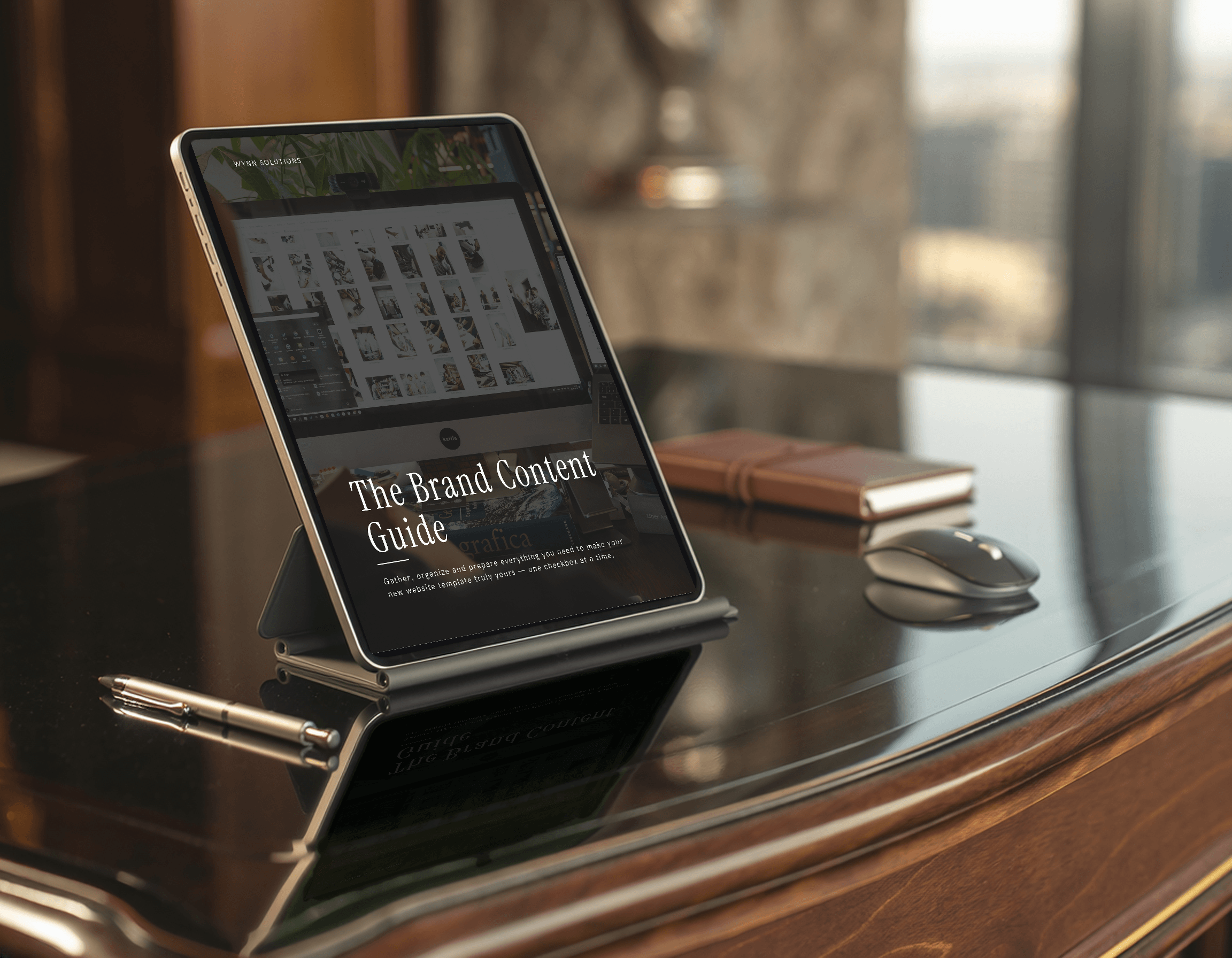
Gather before you build
A little preparation makes customizing faster and keeps your site consistent. Start with your brand, then your visuals, then your words.
BRANDING
Your Brand Content Guide
Included with your purchase. Store your logo files, color hex codes, fonts, and brand voice in one place so every page you design stays on-brand and you never have to hunt for a hex code again.
FONTSWhere to find great fonts
Google Fonts
Free- built into Squarespace font library
Adobe Fonts
Some are free with Squarespace / Creative Cloud
Fontshare
Free for both personal and commercial use
Creative Market
Paid one-time licenses
MyFonts
Paid - large foundry library
Tip: Squarespace includes Google and some Adobe fonts built in. Custom fonts can be uploaded on Business plans and higher
IMAGESWhere to find great photos
Unsplash
Free + Plan option / what we use
Pexels
Free photos and video
Squarespace image library
Free Unsplash + Getty in the editor
Haute Stock
Paid - styled stock
Adobe Stock
Paid - huge library
We use Unsplash for our template demo images; swap them for your own photos to make the site yours.
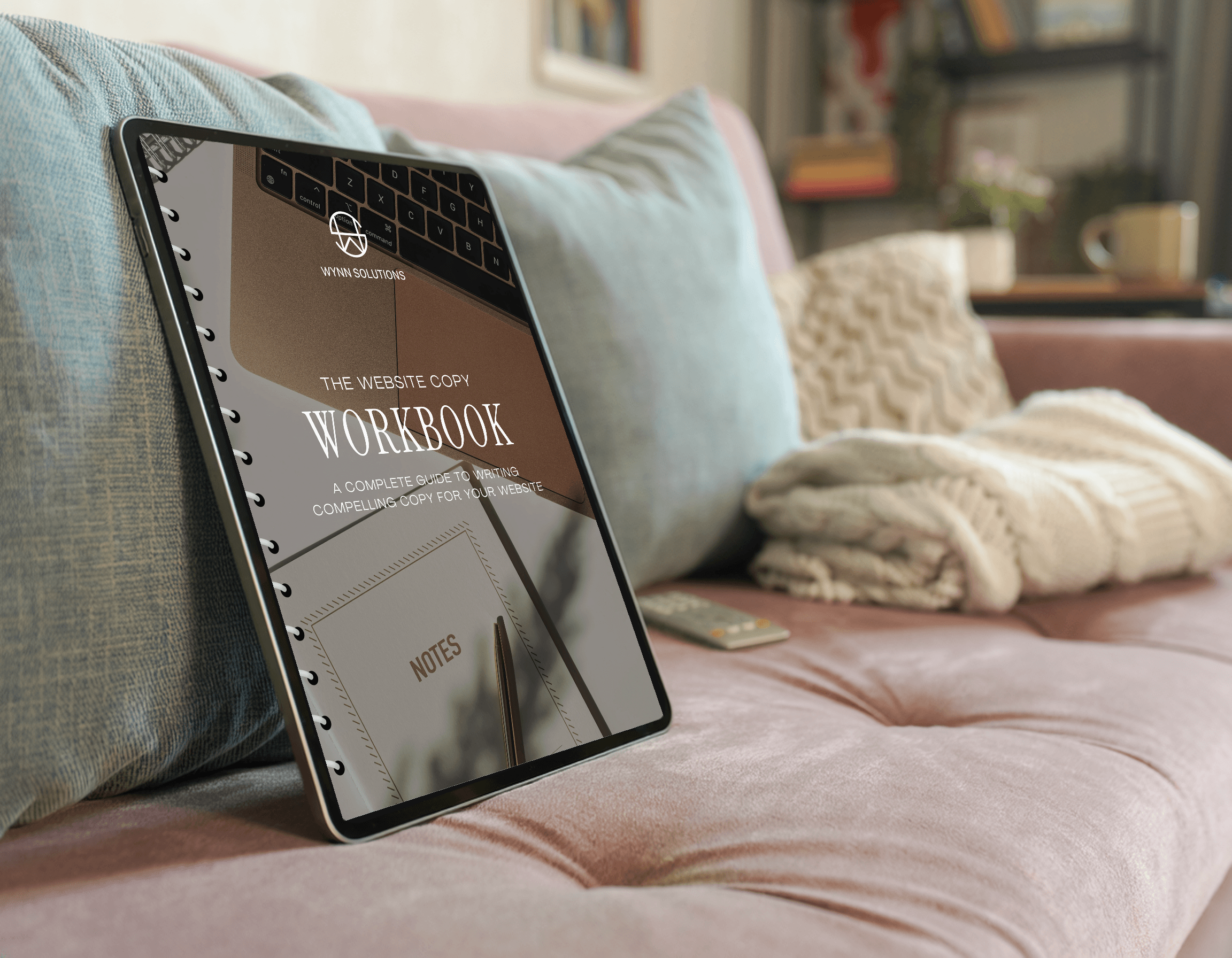
Your Website Copywriting Guide
Words sell before design does. This guide walks you page by page: homepage, about, services, contact, with prompts to help you write clear, confident copy that speaks to your ideal client. Write your copy first, then drop it into your template.
COPY
Squarespace basicsNew to Squarespace? Start here.
Learn how pages, sections, and blocks fit together before you start editing — it will save you hours.
Our blog: Squarespace basics →
Our beginner walkthrough of the editor.
Video: Squarespace tutorial for beginners →
Tutorial from Becca at Inside the Square - her video is very helpful and easy to navigate.
03 - DESIGNMake it yours
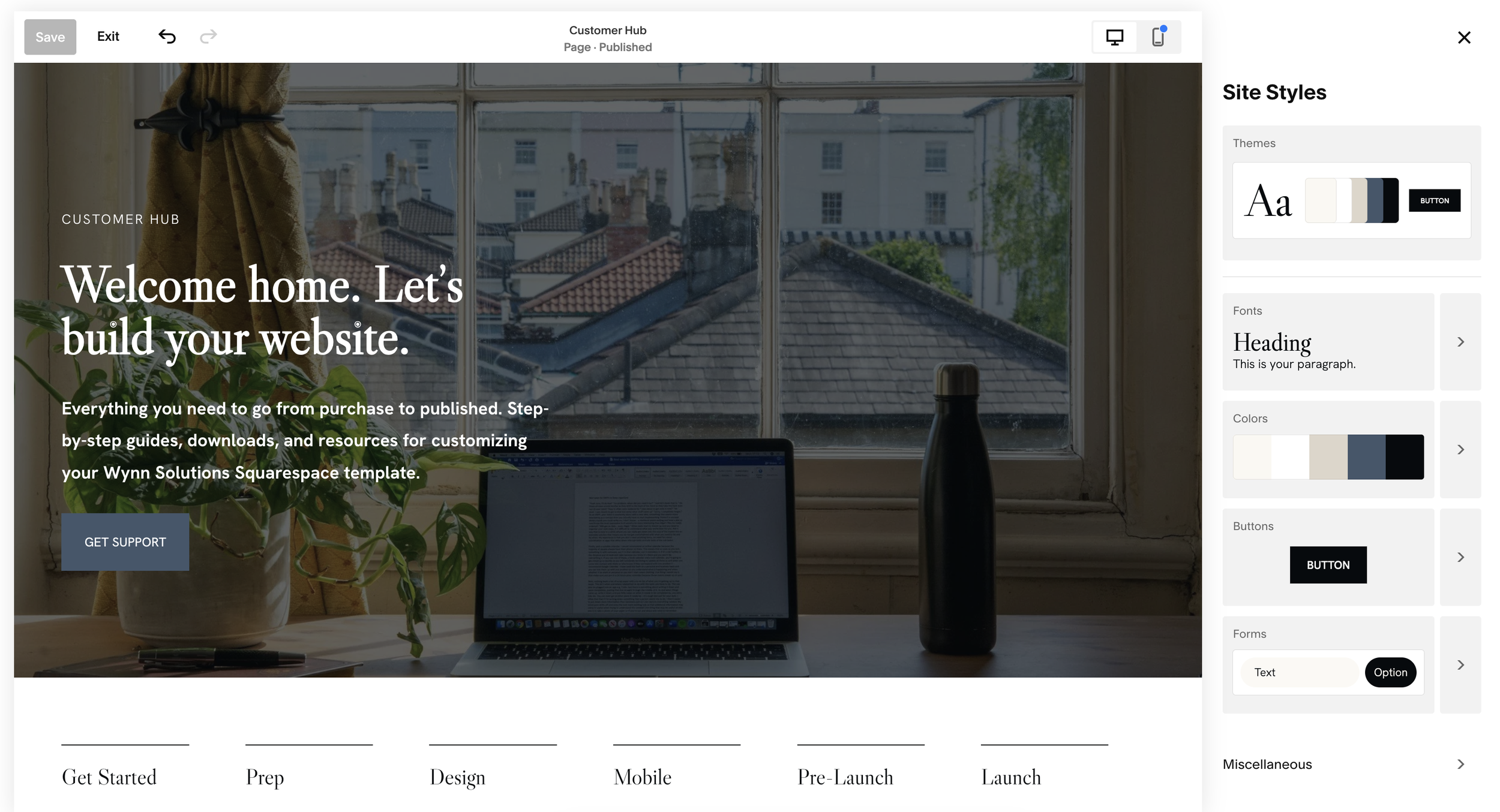
Most global styling lives in the Site Styles panel (the paintbrush icon in the editor). Change it once, and it updates everywhere. Use the page labeled “Brand” under your Not Linked pages to see your style changes in one place (this makes it so much easier to visualize)

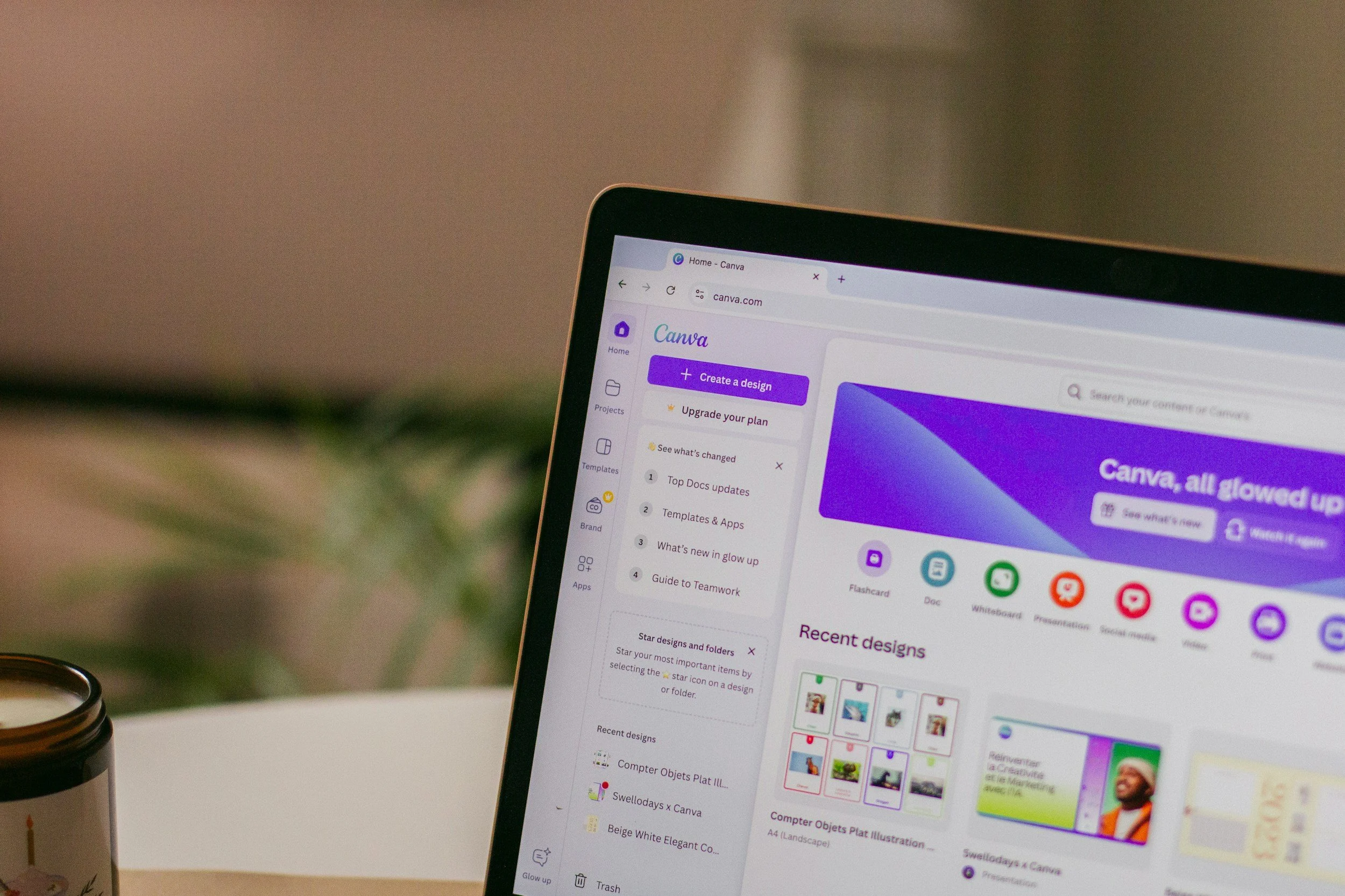
Make Your Canva Graphics Your Own
Some of our templates include editable Canva graphics to help you create a cohesive look across your website and brand. Easily customize the text, colors, images, and other editable elements to make them fit your business.
New to Canva? No worries! We’ve included a quick tutorial to walk you through the basics and help you feel confident customizing your graphics.
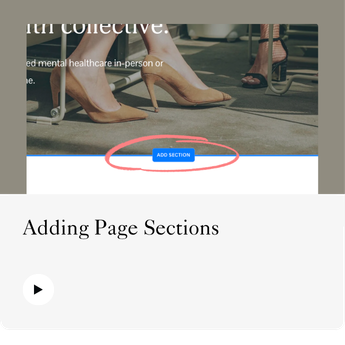
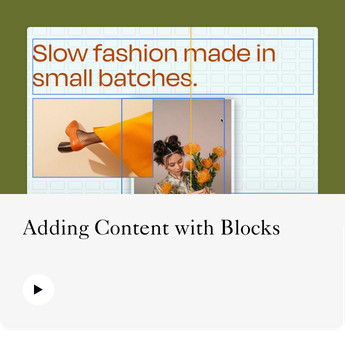
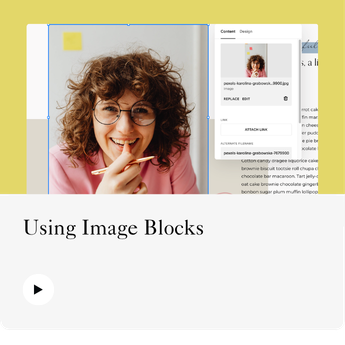
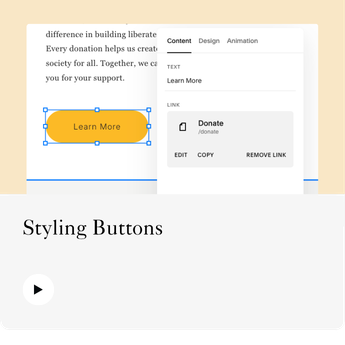
Need help beyond the tutorials below? Visit the Squarespace Help Center for a library of helpful guides, step-by-step articles, and video tutorials covering just about everything you need to know about your website.
Website Basics
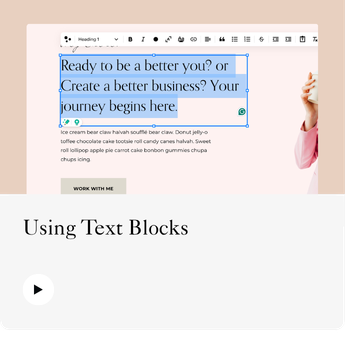
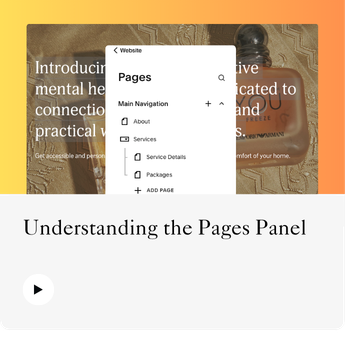
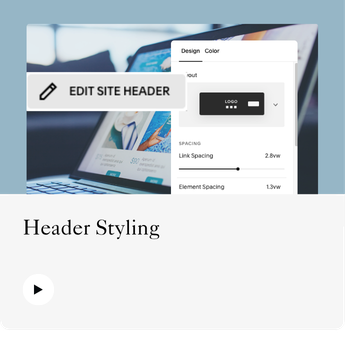
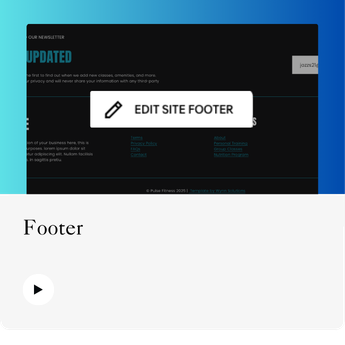
Pages & Navigation
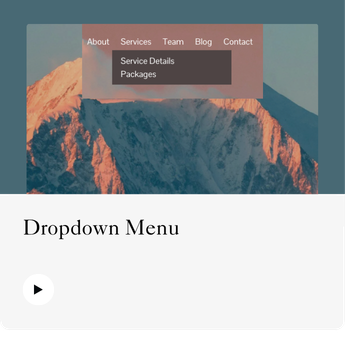
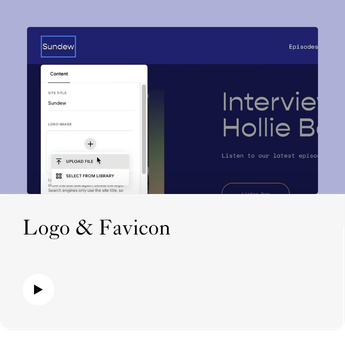
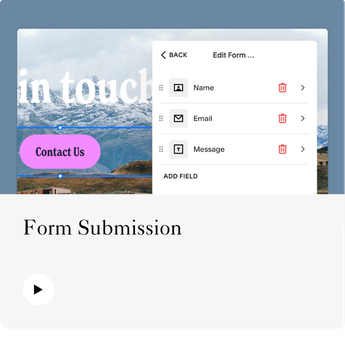
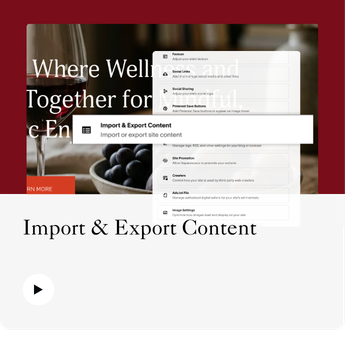
Forms & Integrations
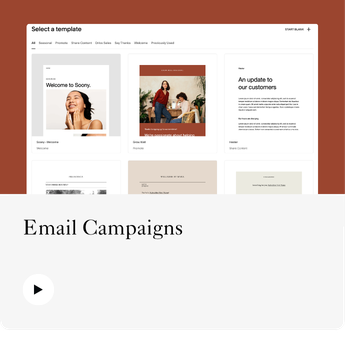
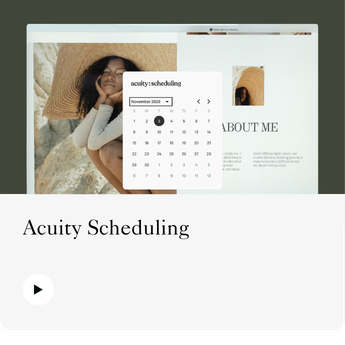
04 - MOBILELooks good on every screen
Over half of your visitors will arrive on a phone. Your template is responsive, but every edit you make should be checked on mobile.
*Seriously…your website being mobile-responsive is super important!
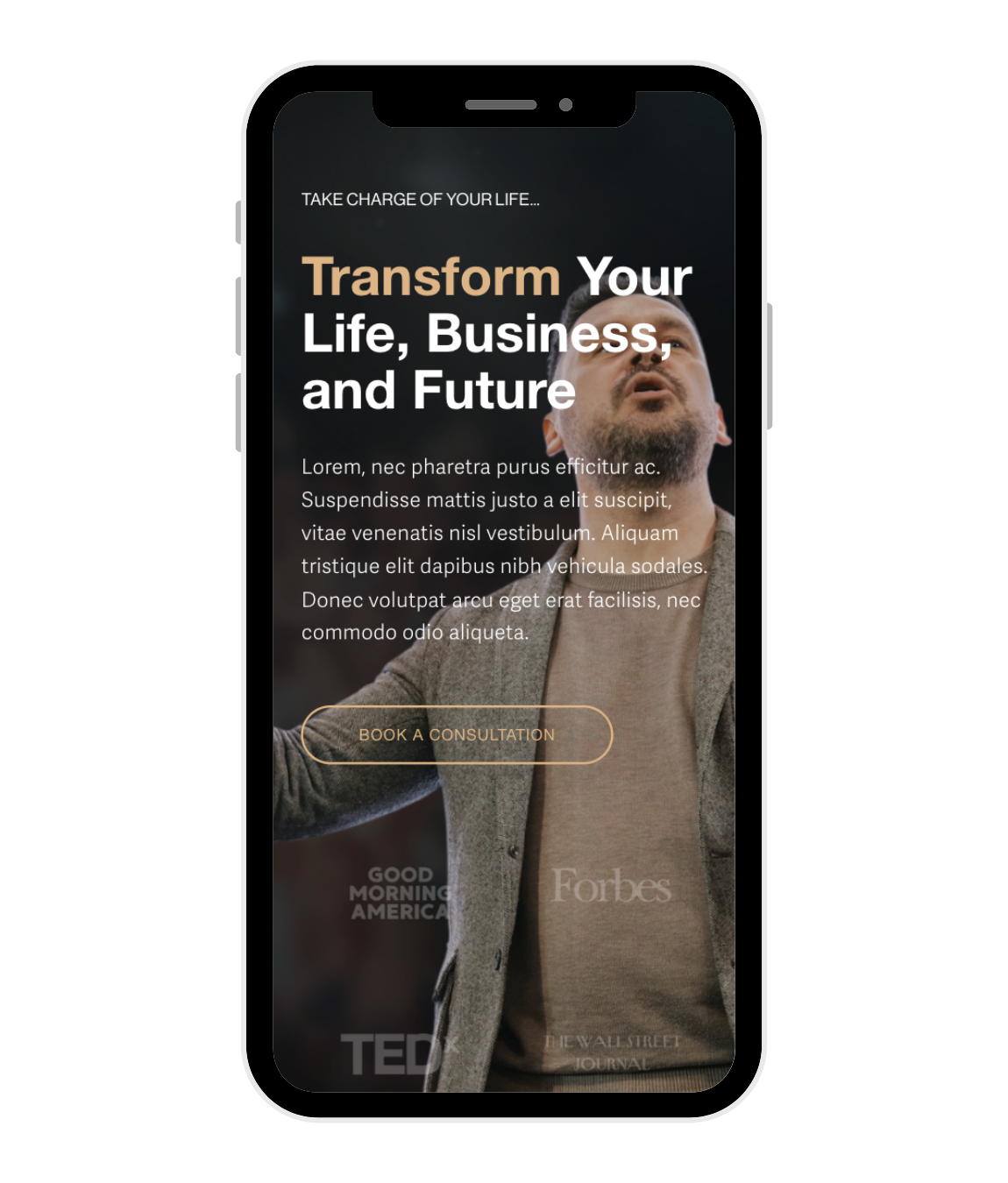
Preview as you go
Use the phone icon at the top of the editor to toggle mobile view.
Edit the mobile layout
Fluid Engine sections have their own mobile layout — rearrange blocks there without affecting desktop.
Check text size
Headings that look great on desktop can be too large on phones. Adjust in mobile view.
Mind image crops
Reset focal points so faces and products aren’t cut off on small screens.
Test on a real phone
Open your site on your own phone before launch — the editor preview isn’t always exact.
05 — LaunchYour pre-launch checklist
Your website is almost ready to go live! Before publishing, take a few minutes to work through our pre-launch checklist. It covers the important details to review, test, and double-check so you can launch with confidence, knowing everything is in place.
SEO
Before launching, make sure your website is optimized for search engines. Review your page titles, descriptions, image alt text, and SEO settings. For extra guidance, refer to the SEO chapter in your downloaded Website Copy Workbook.
Our blog: Winning SEO Strategies →
SEO strategies that still work today.
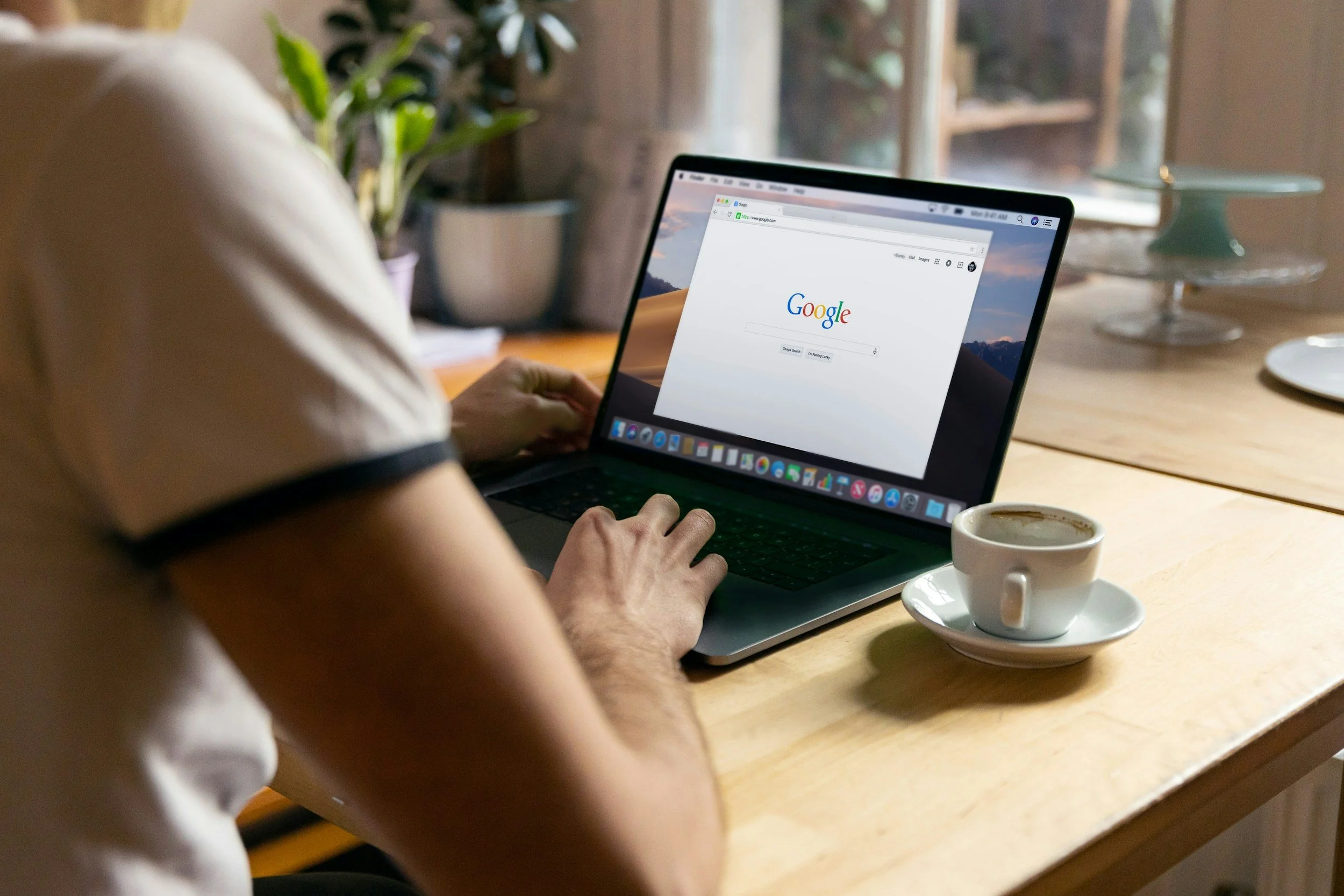
Launch and Celebrate!
You're almost there! It's time to connect your custom domain and make your website live. Checkout the resources below to walk through each step, so you can get your new website out into the world and start sharing it with your audience.

06 — FAQsFrequently asked questions
-
Check your spam or promotions folder first. If it’s not there, submit a support ticket below with your order email address, and we’ll resend it. The email used needs to be the one you’ll use with your Squarespace account.
-
Each purchase includes a licence for one website. For additional sites, please purchase another template or a commercial use license.
-
Yes. The template is free to edit during your trial, but you’ll need a paid Squarespace plan to publish your site.
-
Templates transfer as a new site and can’t be merged into an existing one. You can copy your content across, then connect your existing domain.
-
Due to the digital nature of templates, all sales are final.
-
Yes — ask about our customization services by submitting a ticket with the “Other” topic.
07 — SupportStill stuck? We’re here.
Submit a ticket, and our team will reply within 1–2 business days. The more detail you share, the faster we can help.
Template support covers template setup and features. For billing, domain, or account issues, contact Squarespace Support directly.